
Client Quick Start
Peras Private Atelier
Getting started
1. Download PerasPay and create your account
Follow the setup guide we sent you to download the app and register your account.
Have your iPhone and signing email ready. Open the App Store listing and tap Get or the download icon.
Open the U.S. App Store listing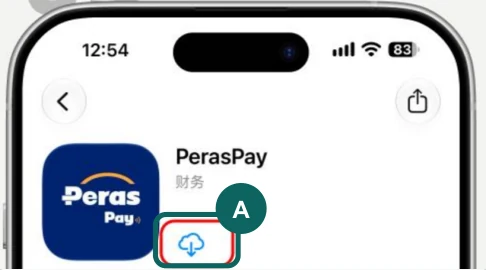
Open PerasPay and follow the setup guide to create your account.
PerasPay App Download and Registration Guide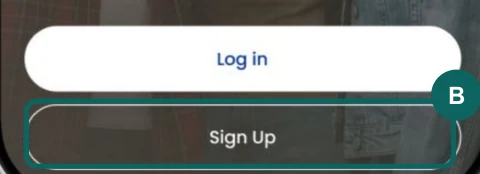
2. Review and sign both agreements
Reply to your Peras contact with your legal name and preferred signing email. Complete the Client Details Form when requested.
Peras will send two separate Zoho Sign invitations. Open each email and click Start Signing.
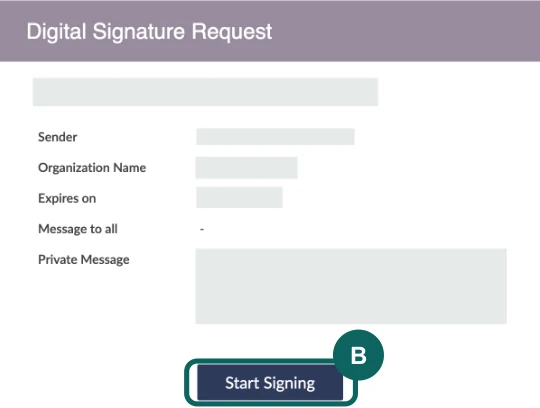
Review and sign. Complete the required fields and select Finish. Repeat for the second agreement.
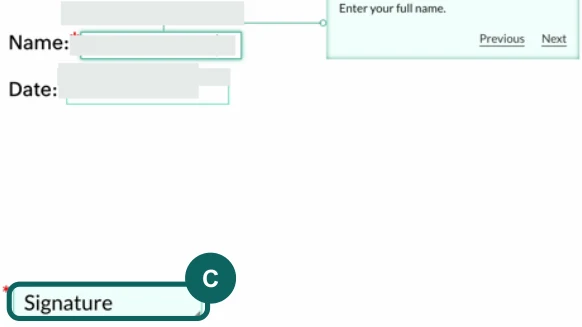
Sign the Main Agreement and the AI Usage Credit Addendum separately.
Zoho Sign instructions
3. Send your USD bank transfer
Open the invoice we send after signing. Confirm the bank details with your Peras contact through your existing contact channel. Send USD from an account in your legal name and include the invoice number as the payment reference.
Wait for your Peras invoice. Verify the beneficiary and account details with your Peras contact before sending. In your bank’s app or website, choose Wire Transfer and use the beneficiary bank’s location to select domestic or international.
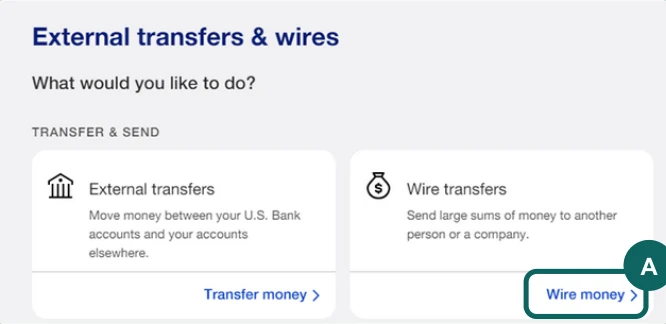
Use a personal account in your legal name. Enter the invoice amount in USD and enter your invoice number in the reference or memo field, if available. Field labels vary by bank.
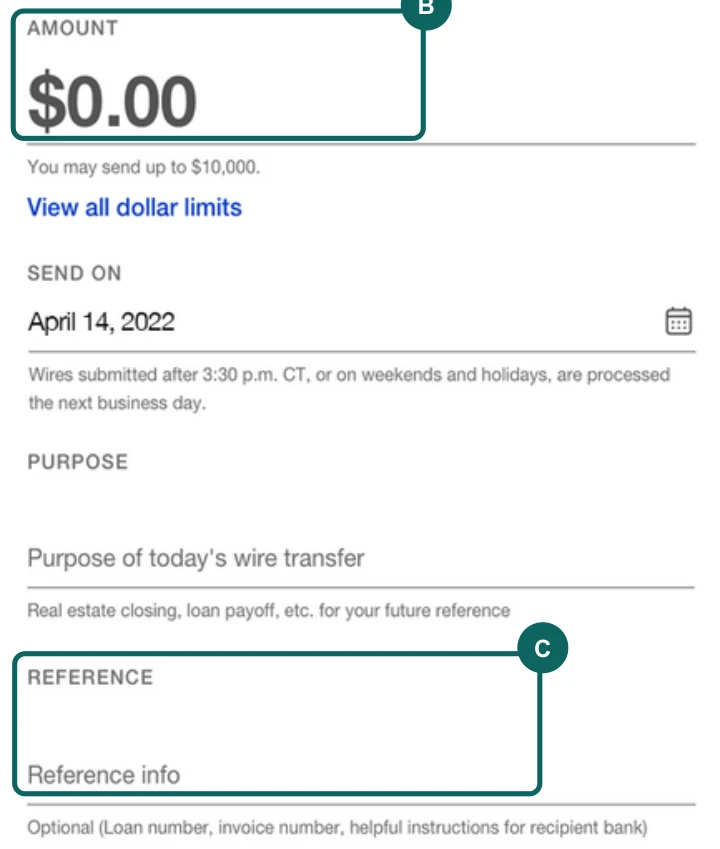
Check the beneficiary, currency, amount and reference before submitting. Keep your bank’s confirmation number.
U.S. Bank wire transfer demoA USD wire may take 1 to 2 business days or longer. Your bank may request signed agreements or supporting documents to verify your identity, business or transaction.
4. Look for your project start confirmation
Watch for an email from Peras. Once payment clears and the required signed paperwork, including the NDA, and client details are complete, we’ll confirm your start date and begin the Phase I design and interactive prototype.
Open your email. Search for your Peras contact’s name or open your existing email thread.
Gmail search reference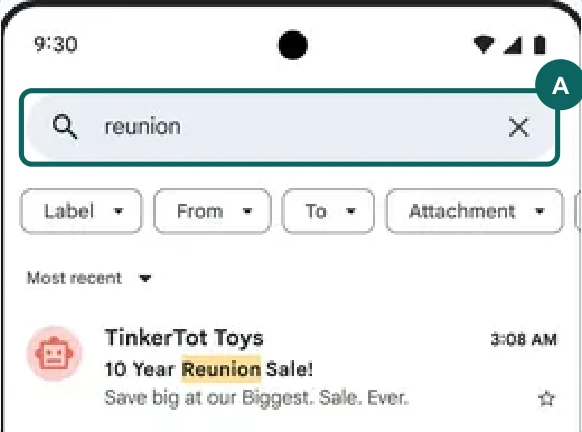
5. Check your Rexion AI Token credits
We’ll confirm your RXT quantity in writing after Phase I settlement and add the credits when your agreed AI features are active.
Log in to PerasPay after we notify you that the credits are available. Follow the instructions in the email to find your RXT AI usage credit amount.

Use the separate RXT guide for instructions on using your credits.
Need help? Reply to your Peras contact’s email.