Create Your Dedicated RXT Wallet Address
Check the network before transferring
The deposit network must match the sending network. Using the wrong network can permanently lose your assets. Use only the RXT deposit address or QR code shown in your own account.
Obtain Your PerasPay RXT Deposit Address
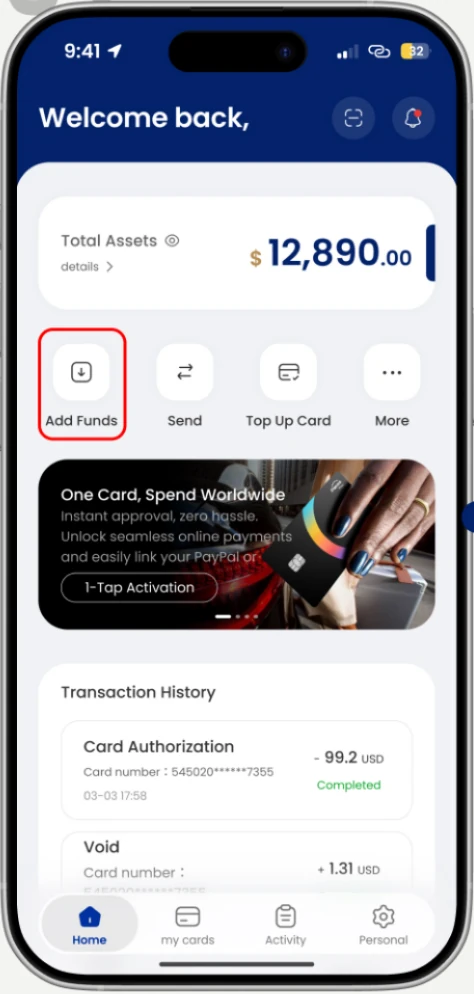
Open Add Funds
On the home screen, tap Add Funds to open the deposit page.
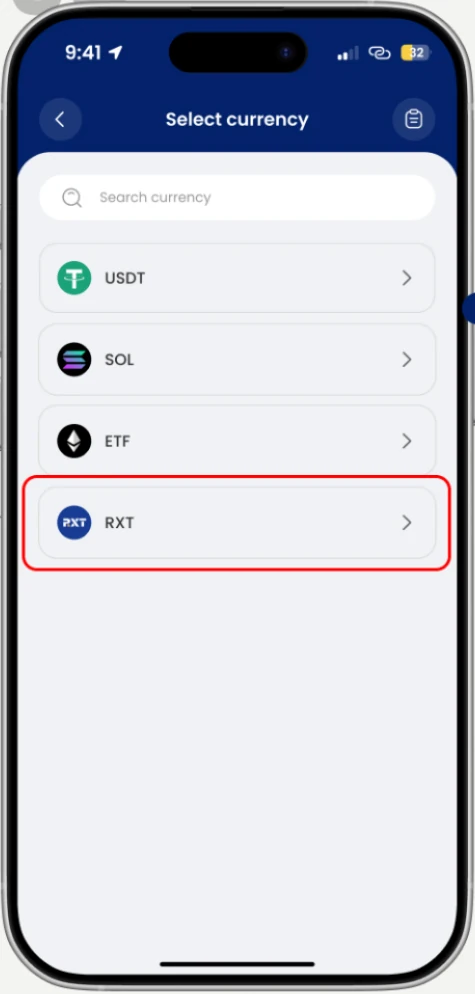
Select RXT
Choose RXT as the asset to deposit.
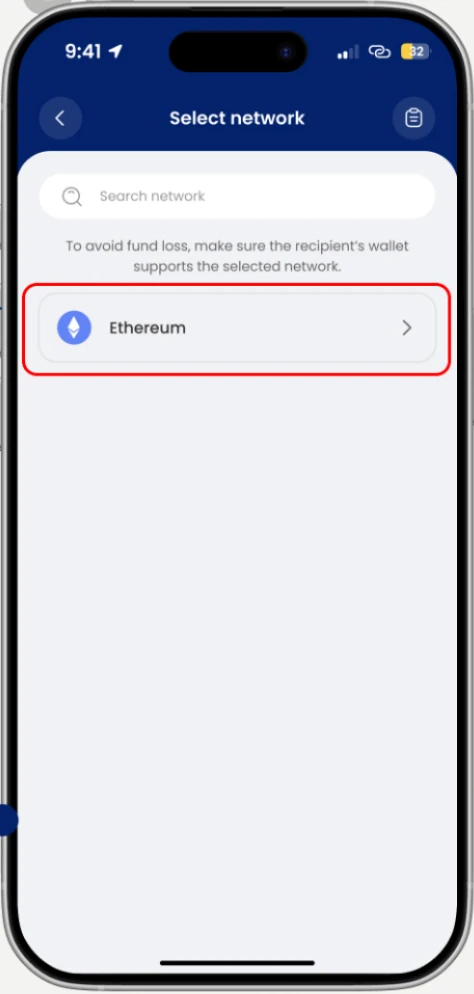
Select Ethereum
Choose Ethereum as the deposit network and check that the sending network matches.
Copy your deposit address
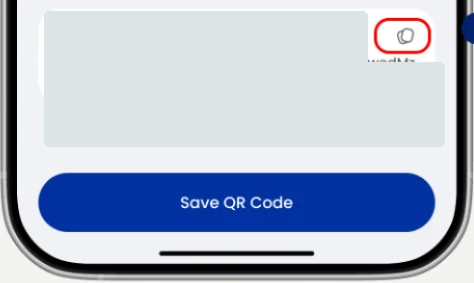
Tap the copy icon on the right of your deposit address. To save a QR code instead, tap Save QR Code.
Check the confirmation
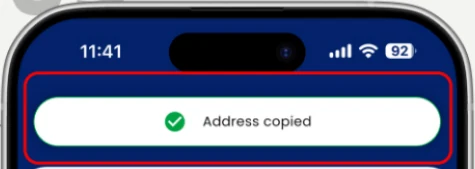
The Address copied message at the top confirms that the address was copied.
Save your QR code
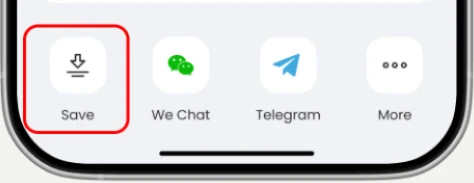
Tap Save QR Code to open the QR code sheet, then tap Save to store it in your photo library.