Complete KYC Verification
Enter your KYC information accurately. During facial verification, hold each pose for about three seconds so the app can capture it clearly.
Enter your personal information
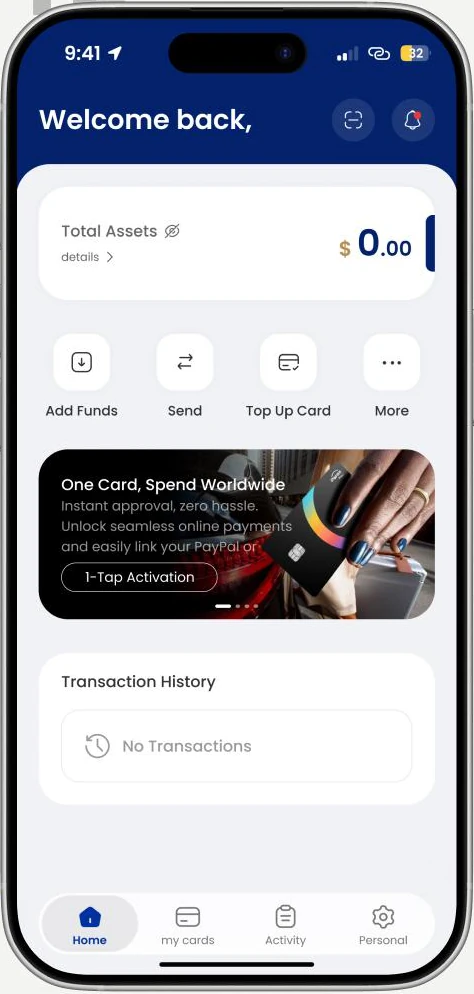
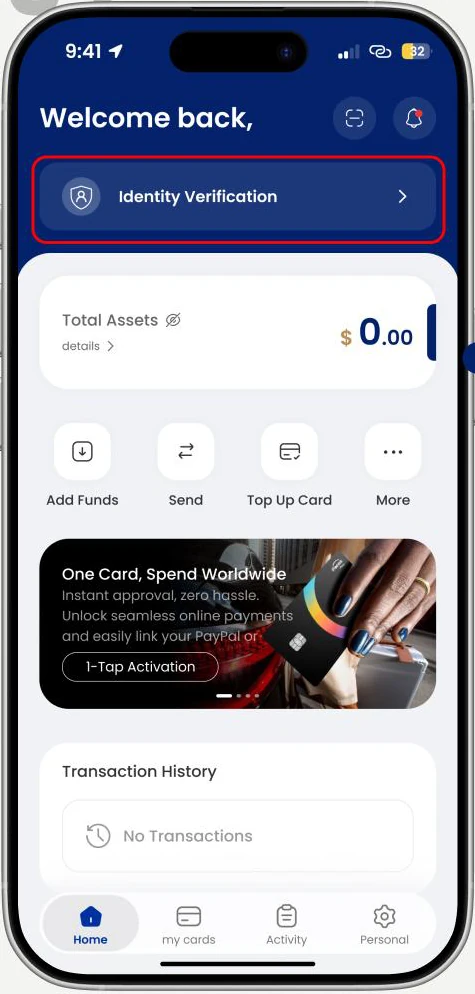
Open Identity Verification
From the PerasPay home screen, tap Identity Verification.
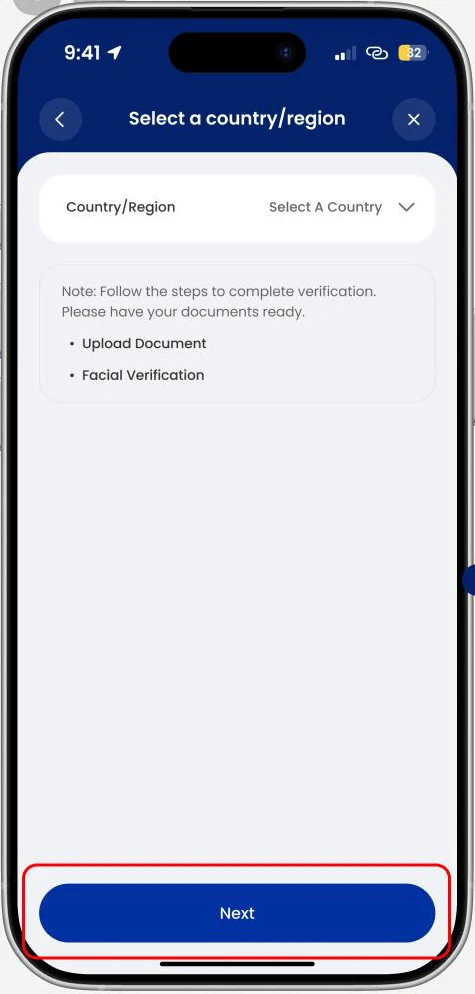
Choose your country or region
Select your country or region of residence.
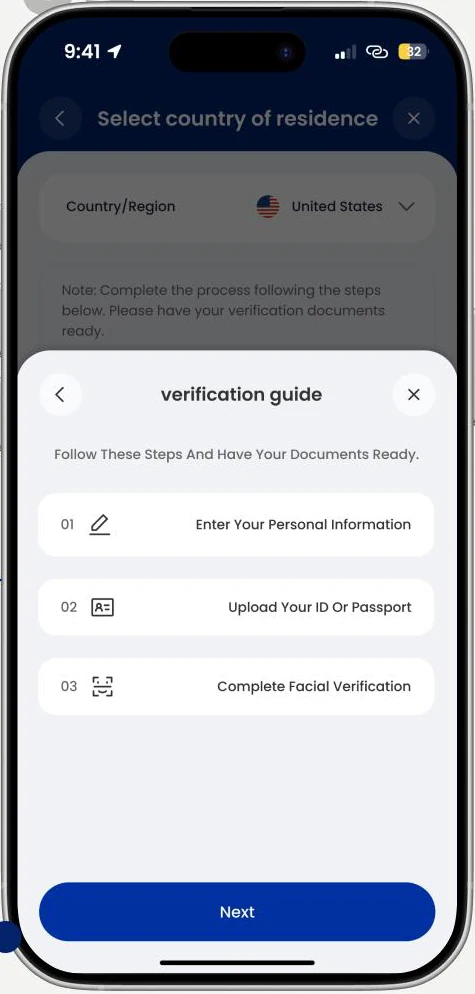
Prepare your documents
Review the on-screen requirements and gather the documents before tapping Next.
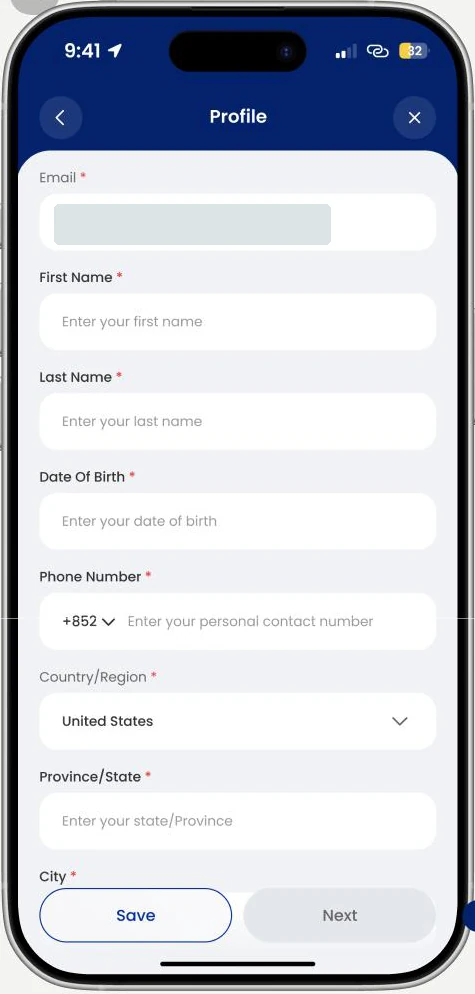
Complete your profile
Enter your personal information as it appears on your documents. Fields marked with an asterisk are required. Tap Save to continue later if you need more time.
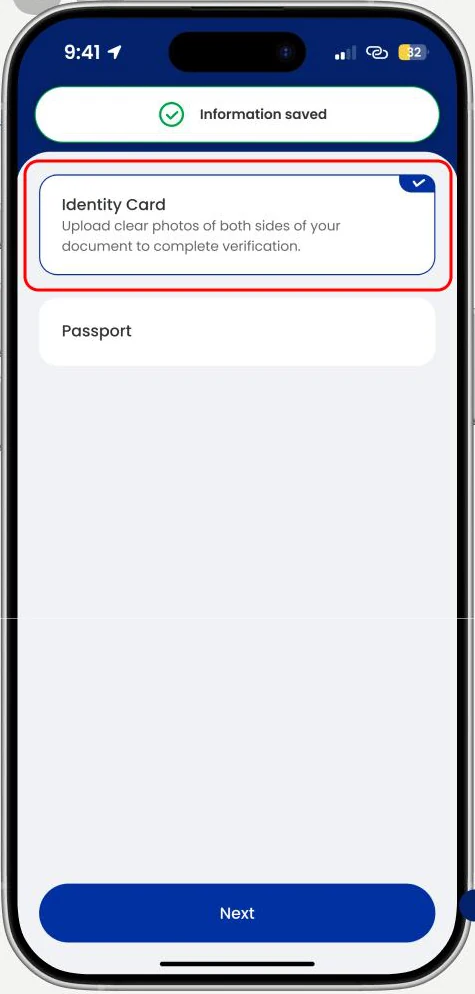
Upload your identity document
Select a document
Choose Identity Card or Passport, then tap the button at the bottom to proceed.
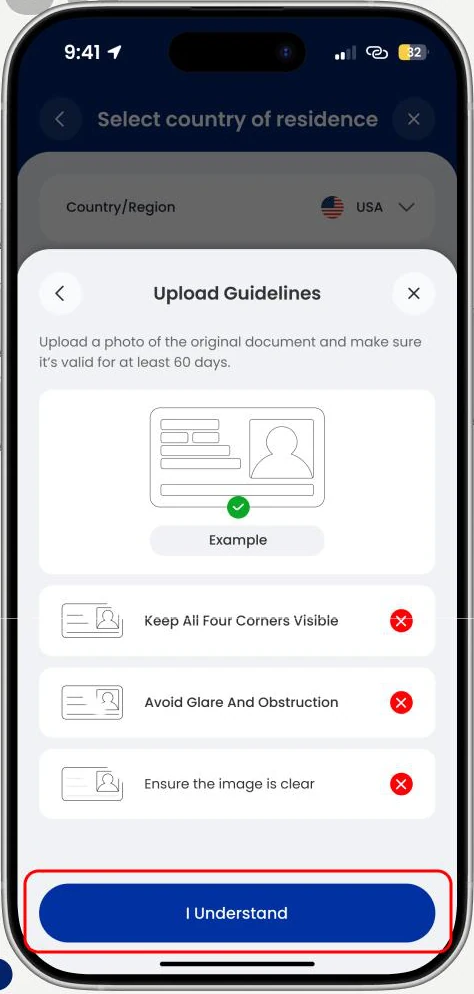
Check the photo requirements
Review the on-screen criteria and retake the photo if any of the listed issues apply.
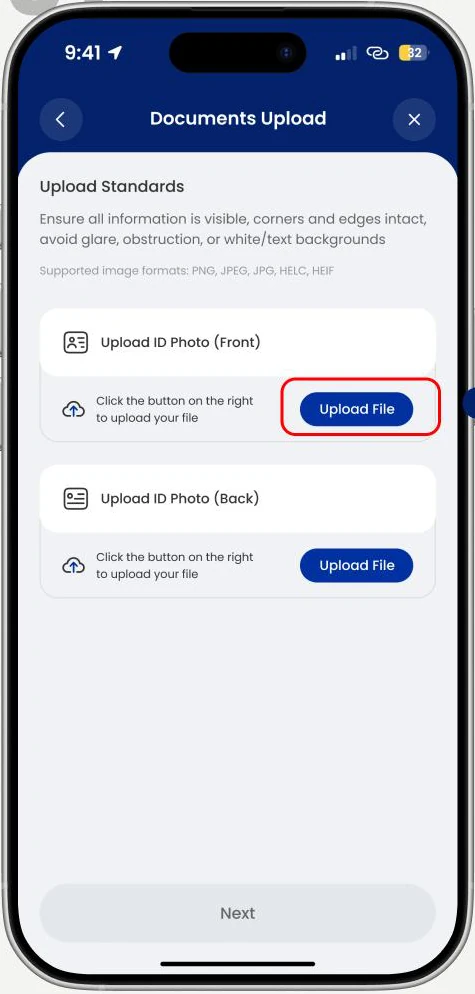
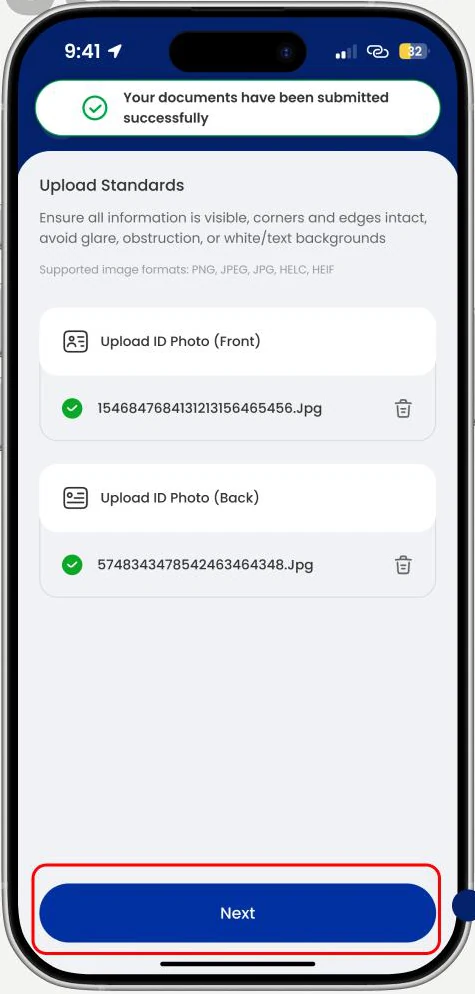
Upload the document photo
Tap the Upload File button for the required photo and select a file.
Confirm the upload
After the success message appears, tap Next to continue.
Complete facial verification
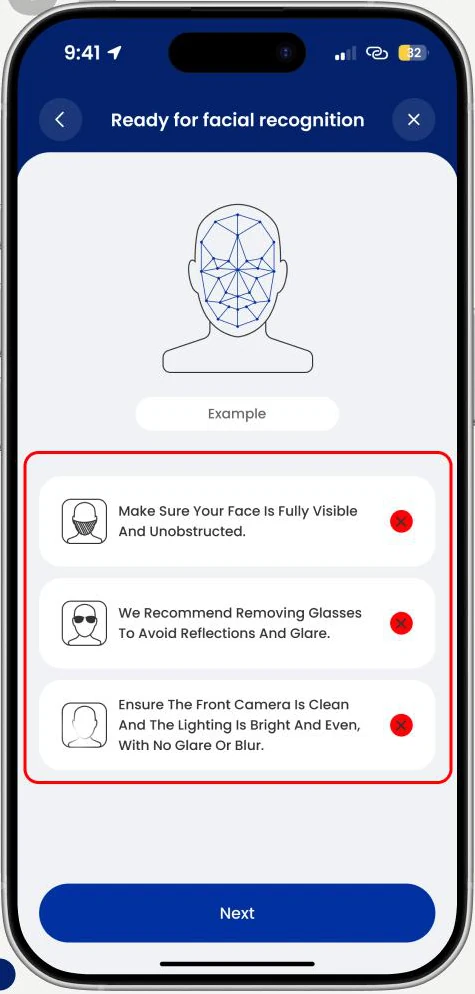
Prepare for facial verification
Check your environment against the on-screen requirements, then tap the button to start.
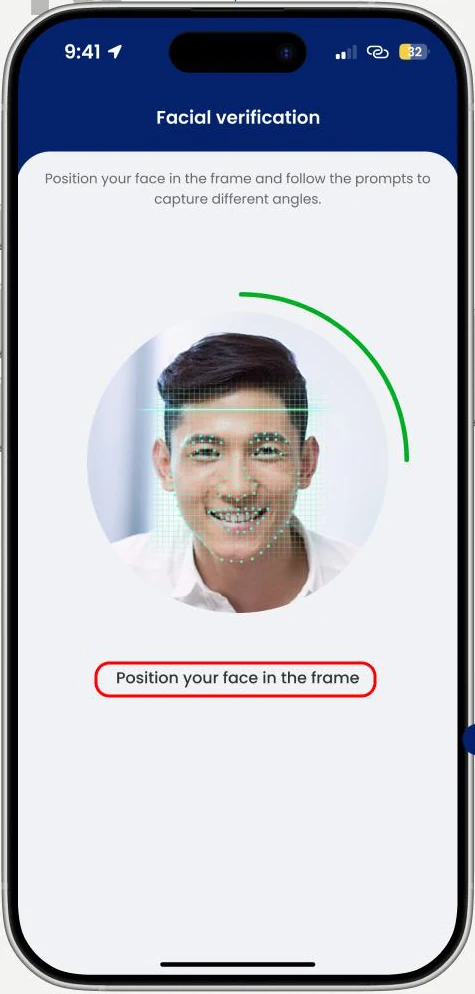
Follow the poses on screen
Keep your face in the guide and hold each pose for about three seconds. Moving your head too quickly can prevent a clear capture.
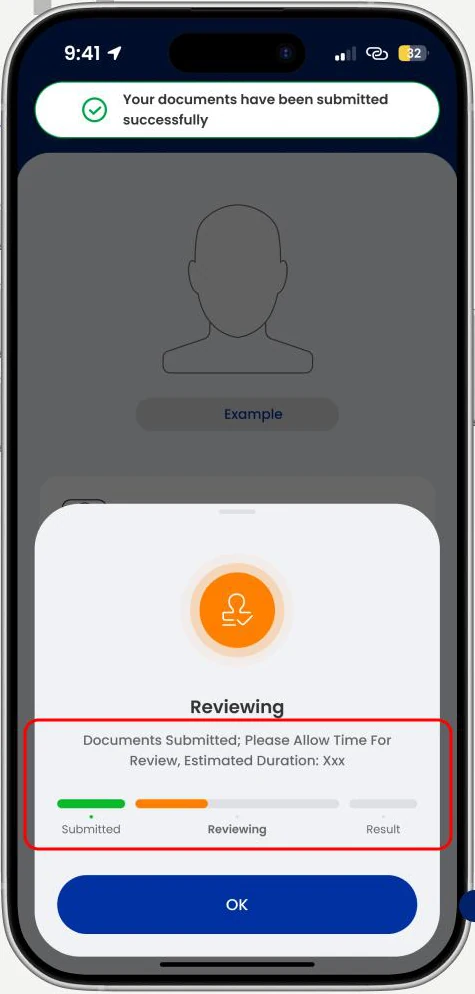
Check your review status
Once facial verification is complete, your application enters review. Check your status or tap OK to return home.
Check that verification passed
Once approved, the Identity Verification module disappears from the top of the home screen. You can then manage your assets in PerasPay.